Shadowrocket
Setup and Connection Guide
Existing setup → Choose a mode → Connect → Verify → Troubleshoot
These steps are written for iPhone and iPad and follow the order for first-time use, explaining what to tap, what to check, and when to continue. Screenshots are from the official App Store listing; the interface on your device may differ.
STEP 01 / IMPORT
Add a Server or Import a Subscription
Start by identifying what information you have. A single complete URL used to update a server list is usually a subscription. Details that include a protocol, server address, port, and authentication information are for adding an individual server. You don’t need to do both. If you already have a subscription, import it so you can update the list from the same source later. If you only have server details, enter them individually.
Have a Subscription? Choose Subscribe
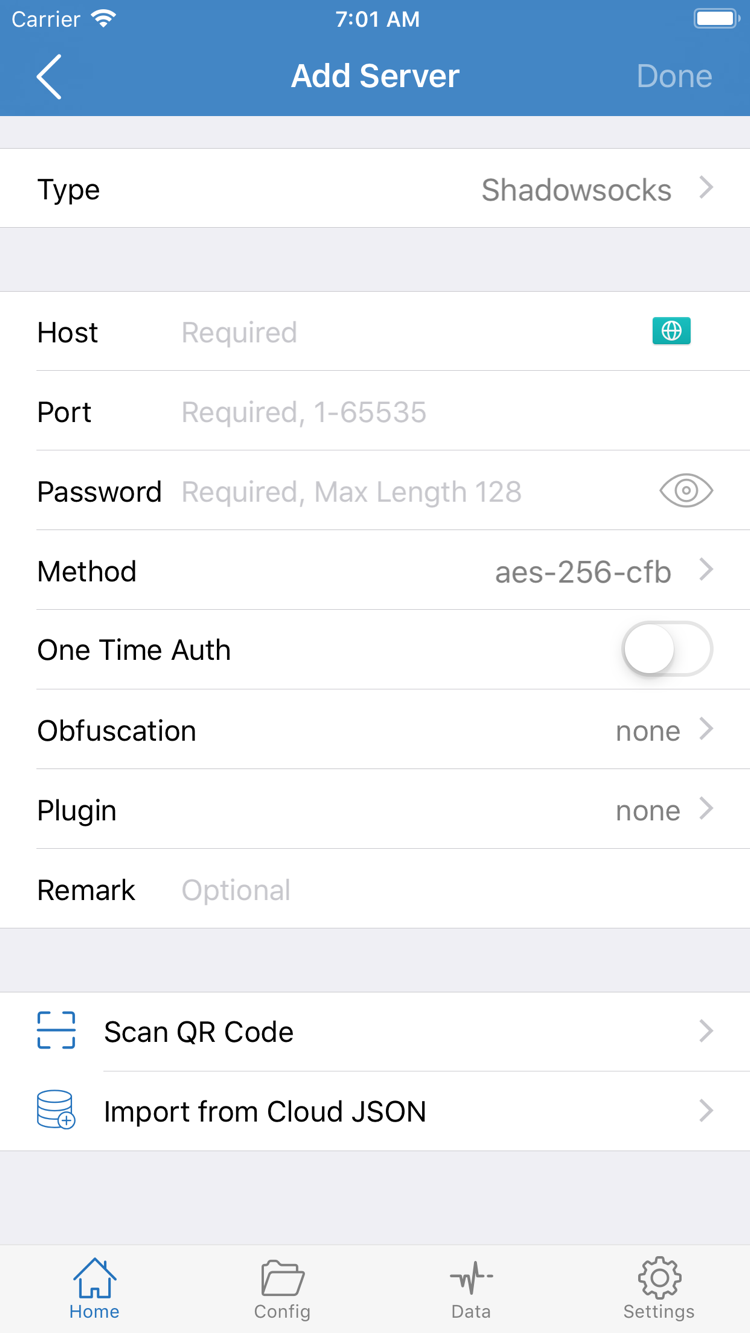
Open Shadowrocket and go to Home. Tap the add button in the upper-right corner or Add Server in the list. On the add screen, tap Type and choose Subscribe. Enter your full subscription link in the URL field, then save. The screenshot shows a single-server form; fields change when you select a different Type. Don’t enter a subscription URL in the Host field shown in the screenshot.
Check that the full URL is intact before and after pasting, especially the parameters after the question mark and the final characters. Watch for spaces or line breaks added when copying from a messaging app. Subscription URLs often contain access credentials, so don’t share them in public comments or screenshots. After saving, return to Home, wait for the content to load, and check that servers appear in the subscription group—not just a subscription name.
If the list is still empty, check whether the subscription updated successfully, whether the URL is valid, and whether your current network can reach it. A failed update and a failed server connection happen at different stages: if the list hasn’t loaded, repeatedly toggling the connection won’t help. For details on specific errors, see Troubleshooting.
Have Server Details? Fill In Add Server
In Add Server, select the Type that matches your details, then enter the Host and Port. Password and Method in the screenshot are examples for that particular type; other protocols may show different authentication or transport fields. Don’t guess at fields just to fill them in, and don’t reuse a password from one protocol for another.
Enter the server’s domain name or address in Host and the corresponding port in Port. Check every other field against your provider’s details or server configuration. For types such as Trojan that use TLS settings, verify related parameters, including the server name—not just the address and password. You can use Scan QR Code to read a QR code, but check the Type and server details after scanning.
After saving, return to Home and confirm the new entry appears in the SERVER list. Select the server you want to use. Seeing it in the list only means its details have been saved; it doesn’t mean a connection has been established. Next, choose how requests should be handled.
STEP 02 / ROUTING
Choose Global Routing
Return to Home and tap Global Routing. This setting determines how requests are routed; it does not select a subscription source. First, understand the three options: Config, Proxy, and Direct. Choose one based on what you want to test, rather than assuming a particular mode is always best.
Config: Follow the Current Configuration
Config uses the rules in the current configuration to determine how requests are handled. Open the app’s Config page and confirm that the configuration file you want to use is available and selected. If your provider gave you a server subscription, don’t assume that it also includes a rules configuration. The server list provides connection endpoints; the configuration file determines how requests are handled.
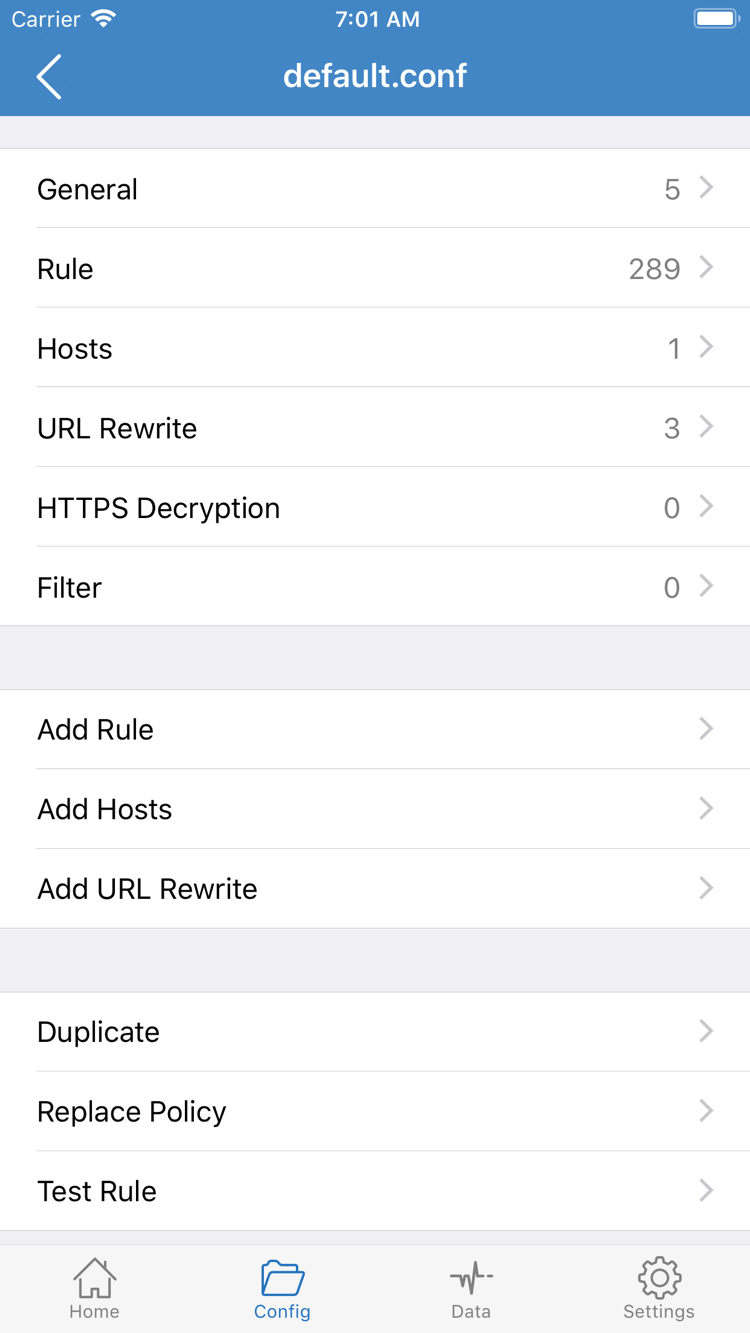
The official screenshot on the right shows the configuration editor sections General, Rule, Hosts, URL Rewrite, and HTTPS Decryption. You don’t need to edit each section to connect for the first time. In particular, don’t paste a subscription link into Rule or enable features unrelated to what you’re trying to do.
For example, the rule below means “send requests for example.com and its subdomains through PROXY, and send all other requests to DIRECT.” This illustrates part of the syntax; it is not a complete configuration to replace your existing file, nor does it mean every site should use the same policy.
[Rule]
DOMAIN-SUFFIX,example.com,PROXY
FINAL,DIRECT
In Config mode, some requests may connect directly while others use a proxy—that may be exactly what the rules specify. To adjust rule order, policy names, or the fallback rule, see Rules and Configuration Reference. Don’t change an entire configuration the first time you connect.
Proxy and Direct
Proxy routes general requests through the selected proxy and can help narrow down an issue: first check whether the server can access the destination, then return to Config to investigate differences in the rules. Direct connects without using the selected proxy server. So even with the connection switch on, you can’t assume the selected server is being used.
After choosing a mode, return to Home and confirm that Global Routing shows the option you selected. To test the proxy connection, note your original mode and temporarily choose Proxy. When the test is done, switch back to the Config mode you plan to use. Then turn on the connection, keeping saved details, mode selection, and connection status distinct as you check each step.
STEP 03 / CONNECT
Turn On the Connection and Authorize It in iOS
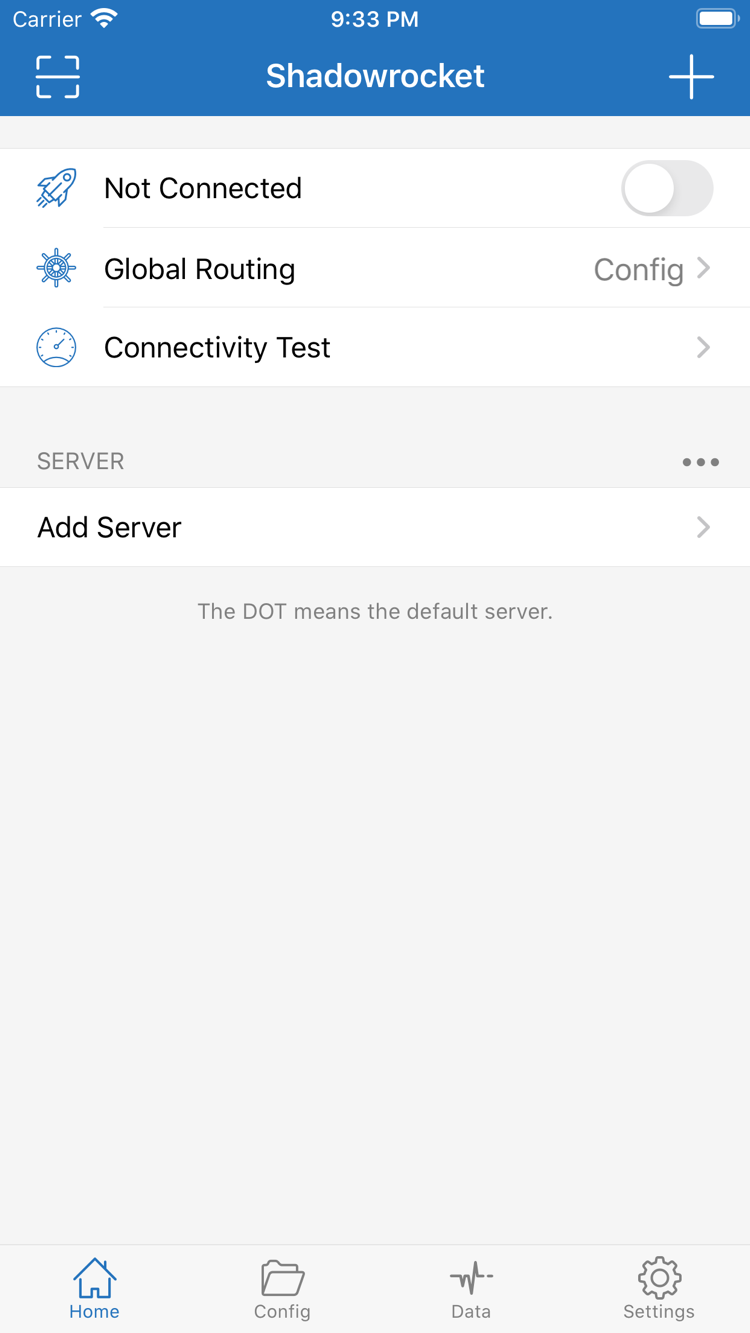
Return to Home and confirm that the server you want to connect to is selected under SERVER—not just open in the edit screen. Check Global Routing, then turn on the connection switch at the top. Not Connected in the screenshot on the right means there is no connection yet; the screenshot does not show your device’s current status.
When connecting for the first time, iOS asks permission to add a VPN configuration. Read the system prompt and confirm it was triggered by your action, then allow it and complete any device passcode or identity verification requested by iOS. This authorizes the app to configure a system network connection; it is separate from your server password. Complete system verification in the system interface—don’t enter it in Add Server’s Password field.
If you canceled the system authorization prompt, return to the app and try connecting again to see if it reappears. If authorization isn’t complete, don’t assume the subscription is invalid just because the switch turns off automatically, and don’t immediately delete all your servers. Complete authorization first, then check what happens next to avoid unnecessary changes.
Check the Connection Status on Home
After authorizing the connection, return to Shadowrocket and check whether the status at the top has changed from Not Connected, whether the switch stays on, and whether an error appears. The VPN indicator in iOS can help confirm tunnel status, but it doesn’t show which policy a specific webpage used or prove that all server details are correct.
If the switch turns off immediately, note the message, confirm the app has the required system permission, and check whether another active VPN connection is affecting the test. Don’t toggle the switch rapidly or update the subscription, change modes, and edit the configuration all at once while the connection is unstable. Otherwise, it will be hard to tell which change affected the result.
Once the switch stays on, leave the selected server and mode as they are and continue to the next step. To stop the connection, return to Home and turn off the same switch. You don’t need to enable On Demand for the first test; leaving it off makes it easier to assess the manual connection.
STEP 04 / VERIFY
Verify the Connection and Test Real-World Access
Verify three things separately: whether the server test returns a result, whether a webpage actually loads, and whether requests follow the expected policy. These checks are related but not interchangeable. Looking only at the connection switch or a test result can miss DNS, authentication, rule, or destination-site issues.
Check Connectivity with Connectivity Test
On Home, tap Connectivity Test, wait for it to finish, and review the result for the selected server. This can help identify an unreachable endpoint, but results depend on the test method and network conditions. A low value doesn’t mean every webpage will load, and a failed test needs to be considered alongside real-world access. It doesn’t automatically mean the entire subscription is invalid.
If the subscription includes multiple servers, select another one and test it while keeping the network, mode, and configuration unchanged. This lets you compare one variable at a time instead of changing the whole setup. Don’t keep changing protocol fields to chase a particular test result; use your own server details to confirm the correct parameters.
Check Access with a Real Request
Keep the connection on, switch to your browser, and visit a site you normally use and are authorized to access. Check that the page loads its content, not just its title. Then try another site you normally use for comparison. If only one site fails, the issue may be with that site, your account, or the applicable rule; it doesn’t necessarily mean the whole connection has failed.
If you’re using Config, check the in-app request log for the destination domain, matched rule, and policy. Requests expected to use a proxy should show the relevant proxy policy; requests expected to connect directly may match DIRECT. The log shows what the current app reports. Don’t treat successful access in Direct mode as proof that the proxy server has been verified.
If needed, note your current settings, temporarily switch to Proxy, and retry the same destination, then restore Config. If Proxy works but Config doesn’t, check the rules, policy references, and DNS differences first. If both modes fail, review the server details and network first. When testing is complete, restore your intended everyday mode and keep the verified working configuration as a baseline for troubleshooting.
STEP 05 / DIAGNOSE
Troubleshoot Connection Issues in the Right Order
When something fails, first identify exactly what happened: did the subscription update fail, did the connection switch turn off, did Connectivity Test return no result, or can’t a webpage load? Each points to a different stage. Check the items below in order, changing one setting at a time, then retest using Step 4. Don’t rebuild everything without evidence.
Check the Local Network First, Then the Connection Details
Turn off the Shadowrocket connection and check whether your current Wi-Fi or cellular network can access the internet. If the local network itself isn’t working, resolve any sign-in, signal, or network-permission issues first. Then return to Home and make sure the server you intend to test is selected. If the subscription has recently changed, update it and check the result instead of repeatedly adding the same URL and creating duplicate entries.
For a single server, return to Add Server and check the Type, Host, Port, and authentication details one by one. Extra spaces in copied text, an incorrect port, or a mismatched protocol can let you save the entry but prevent a connection. Check any TLS or additional transport settings too. Don’t bypass errors by disabling verification at random; first confirm the server details and device time are correct.
Test Returns a Result, but Webpages Won’t Load
Note the current Global Routing mode, then compare the same request in Proxy and Config. If it fails only in Config, check the rule matched by the destination, whether its policy references an available server, and whether the FINAL fallback behaves as expected. If both modes fail, check the server, DNS resolution, and the actual connection path. A test result alone doesn’t rule out these issues.
DNS and rules issues can look similar. Use error messages and request logs to check whether the domain resolved to an address, whether the connection timed out, and whether the request matched REJECT. Don’t replace your existing file with a full DNS configuration found online. Save the original configuration, then make the smallest change that addresses the issue you found. For details, see Connection and DNS Troubleshooting.
Check Settings Without Changing Everything at Once
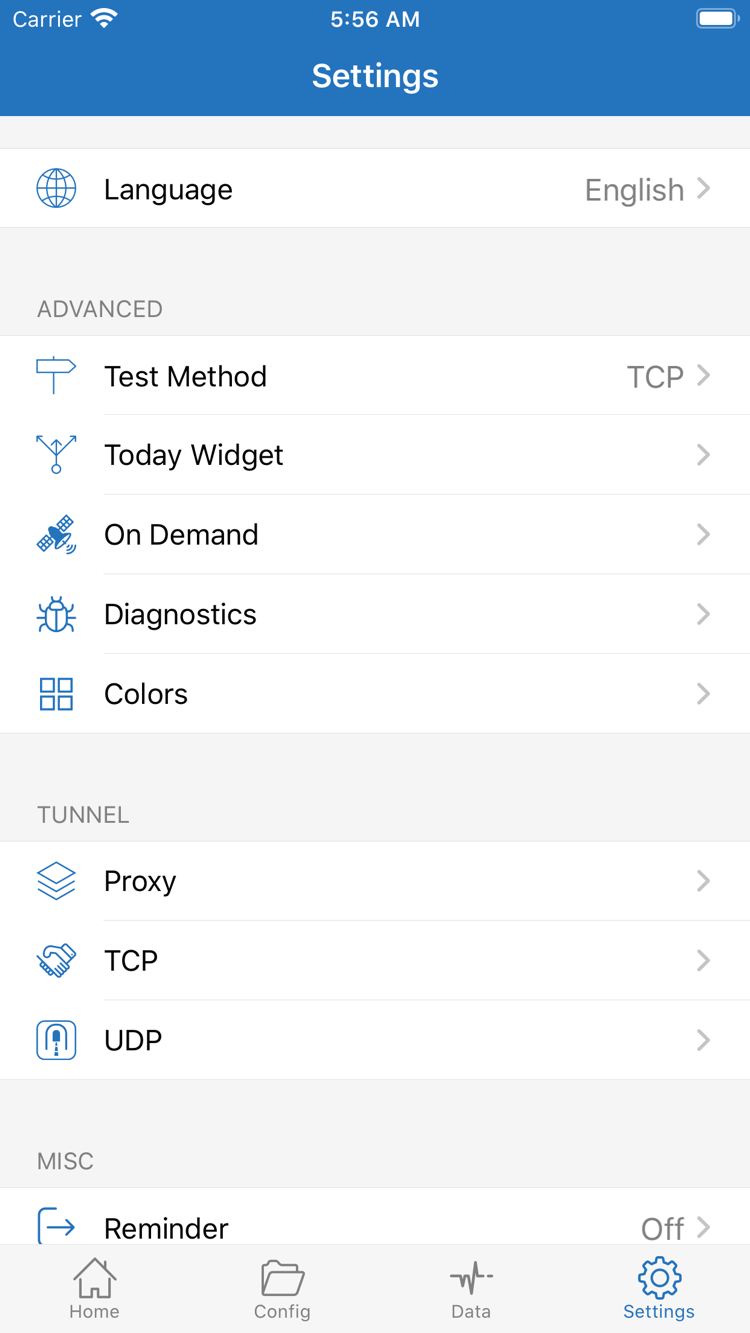
Open Settings to find Test Method, On Demand, Diagnostics, and related options such as Proxy, TCP, and UDP. Test Method affects how tests run, so keep it consistent when comparing results. On Demand controls connections triggered by conditions; when troubleshooting manually, check whether it might reconnect automatically. Don’t confuse the Proxy option in Settings with Proxy mode under Global Routing.
For further diagnosis, check the options actually available under Diagnostics. Record when the error occurred, your current network, the selected mode, and the steps that reproduce it; this is more useful than simply saying “it won’t connect.” Before contacting your provider, hide the subscription URL, authentication fields, and other access credentials. Share only the status and error details relevant to the issue.
If another server works under the same conditions but the current one keeps failing, keep the working result and ask the provider of your existing service about the affected server. If all servers fail, continue checking the local network, system authorization, and current configuration. For issue categories, see Troubleshooting; for rules and file structure, see the Configuration Reference. This completes the first-time import, connection, and verification steps.